2.4GHz vs 5GHz WiFi: What's the Difference and Which Should You Use?
2.4GHz vs 5GHz WiFi: What's the Difference and Which Should You Use?
You've probably seen two WiFi names on your phone at some point: one ending in "2.4G" and one in "5G." Maybe you picked the first one that connected and never thought about it again.
That's fine, until your video call freezes, your CCTV camera won't connect, or the WiFi is fast in the living room and hopeless in the bedroom. Often the culprit is simply that you're on the wrong band.
This guide explains the difference between 2.4GHz and 5GHz in plain language, and helps you decide which one to use in your home, office, hostel or business.
The Quick Answer
If you're in a hurry:
Use 2.4GHz when you need range, or when you're connecting older or simple devices like smart plugs, CCTV cameras and printers.
Use 5GHz when you need speed and you're close to the router: streaming, gaming, video calls, big downloads.
Now let's look at why.
What Are 2.4GHz and 5GHz, Anyway?
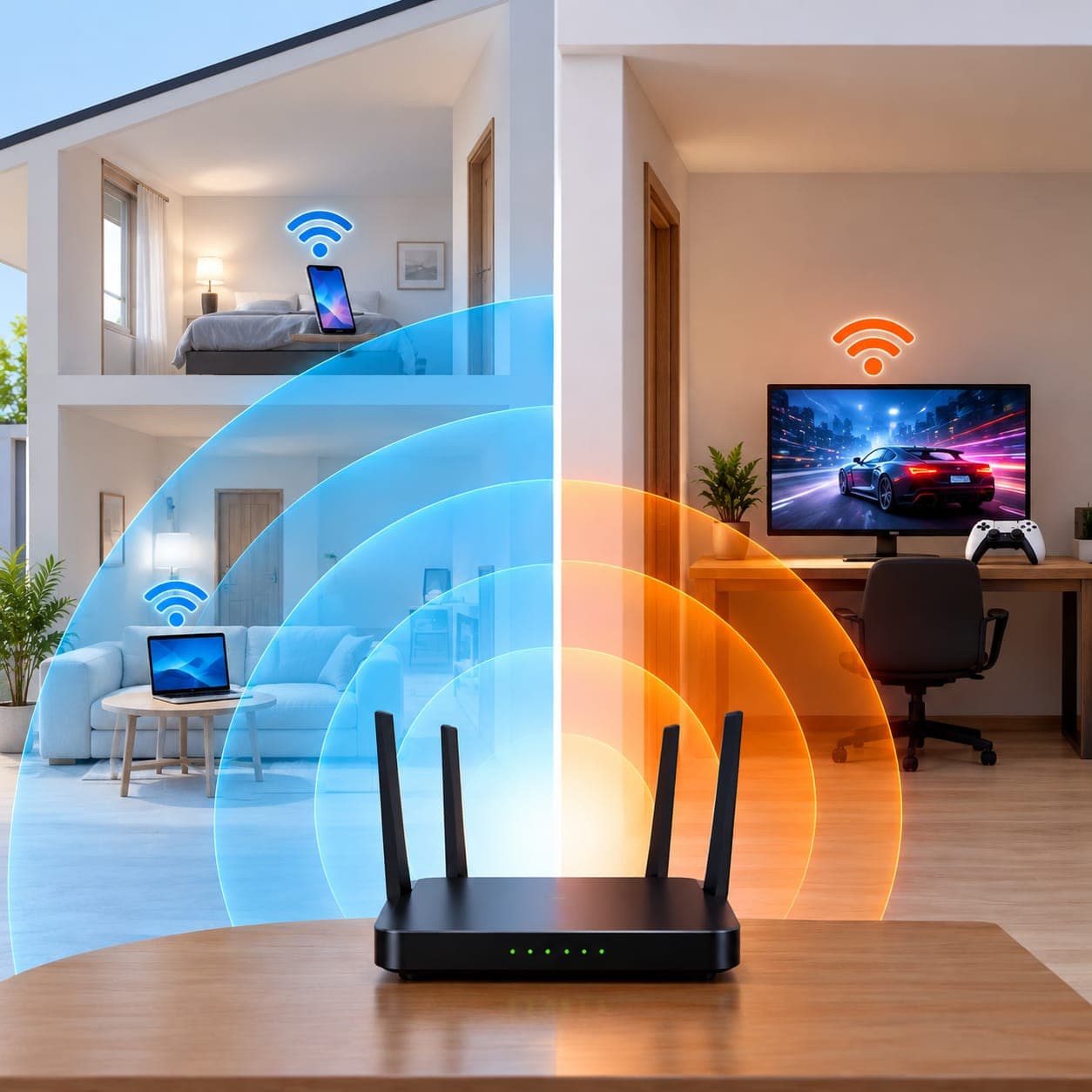
They're two different radio frequencies your WiFi uses to send data through the air. Think of them as two roads to the same destination.
The 2.4GHz road is long and narrow. It travels far and pushes through walls fairly well, but it's crowded and speeds are limited.
The 5GHz road is shorter but wide and fast. It carries much more traffic at higher speeds, but it doesn't reach as far and struggles more with obstacles.
Most modern routers are dual band, meaning they broadcast both at once, so you can pick whichever suits the moment.
2.4GHz vs 5GHz at a Glance
2.4GHz | 5GHz | |
|---|---|---|
Speed | Slower | Faster |
Range | Longer | Shorter |
Wall penetration | Better | Weaker |
Interference | High (very crowded) | Low (more channels) |
Device support | Nearly every device | Most modern devices |
Best for | Coverage, smart devices, basic browsing | Streaming, gaming, calls, downloads |
Speed: 5GHz Wins
5GHz can carry far more data at once, so it's noticeably faster. If you pay for a fast fibre plan but connect over 2.4GHz, you may never see the speed you're paying for, because the band itself becomes the bottleneck.
This is why streaming HD video, joining Zoom or Google Meet calls, gaming and downloading large files all feel better on 5GHz.
Real-world example: you're on a fibre connection and sitting in the same room as the router. On 5GHz, a movie loads instantly. On 2.4GHz, the same movie may buffer whenever someone else in the house starts a download.
Range: 2.4GHz Wins
Lower frequencies travel further and get through solid objects more easily. That matters in Kenyan homes, where concrete and stone walls are common and can swallow a 5GHz signal quickly.
If your router sits in the sitting room and you need WiFi in a back bedroom, a kitchen or the compound, 2.4GHz will usually reach where 5GHz gives up.
The catch is that a strong 2.4GHz signal isn't always a fast one. You'll see full bars but slow pages, and that leads us to the next point.
Interference: Why 2.4GHz Gets So Crowded
2.4GHz is a busy neighbourhood. Your neighbours' routers use it. So do microwaves, Bluetooth speakers, baby monitors, wireless mice and cordless phones. Add the fact that it only has three channels that don't overlap (1, 6 and 11), and things get messy fast.
That's a big problem in apartment blocks, hostels and estates, where dozens of routers fight over the same few channels. The result is slow speeds, random drops and pages that stall for no obvious reason.
5GHz has many more channels and far fewer devices competing for them, so it's usually cleaner and more stable. Because it doesn't travel as far, your neighbours' 5GHz signals also fade before they reach you, which helps.
Device Compatibility: Don't Forget the Small Stuff
Nearly everything supports 2.4GHz. Not everything supports 5GHz.
Many smart plugs, WiFi bulbs, CCTV cameras, printers and older phones and laptops only work on 2.4GHz. If you can't get a device to connect, check whether it's trying to join a 5GHz network. That's one of the most common WiFi headaches around.
Modern phones, laptops, smart TVs and gaming consoles almost all support both bands.
Which Band Should You Use? By Situation
At home
Phones, laptops and smart TVs in the same room or close to the router: 5GHz.
Far rooms, the balcony or the compound: 2.4GHz.
Smart plugs, cameras and printers: 2.4GHz.
In a small office or shop
Use 5GHz for staff laptops, video calls and cloud software, and keep 2.4GHz for printers, POS devices and older equipment. Just as important, place your access points properly so 5GHz covers the areas people actually work in.
In a hostel, hotel or apartment block
This is where the choice matters most. Concrete walls and lots of neighbouring networks make 2.4GHz slow and unreliable. The fix isn't a single powerful router. It's several access points spread through the building, each covering a small area on 5GHz. Our guide on choosing a WiFi access point is a good starting point.
For a WiFi hotspot business
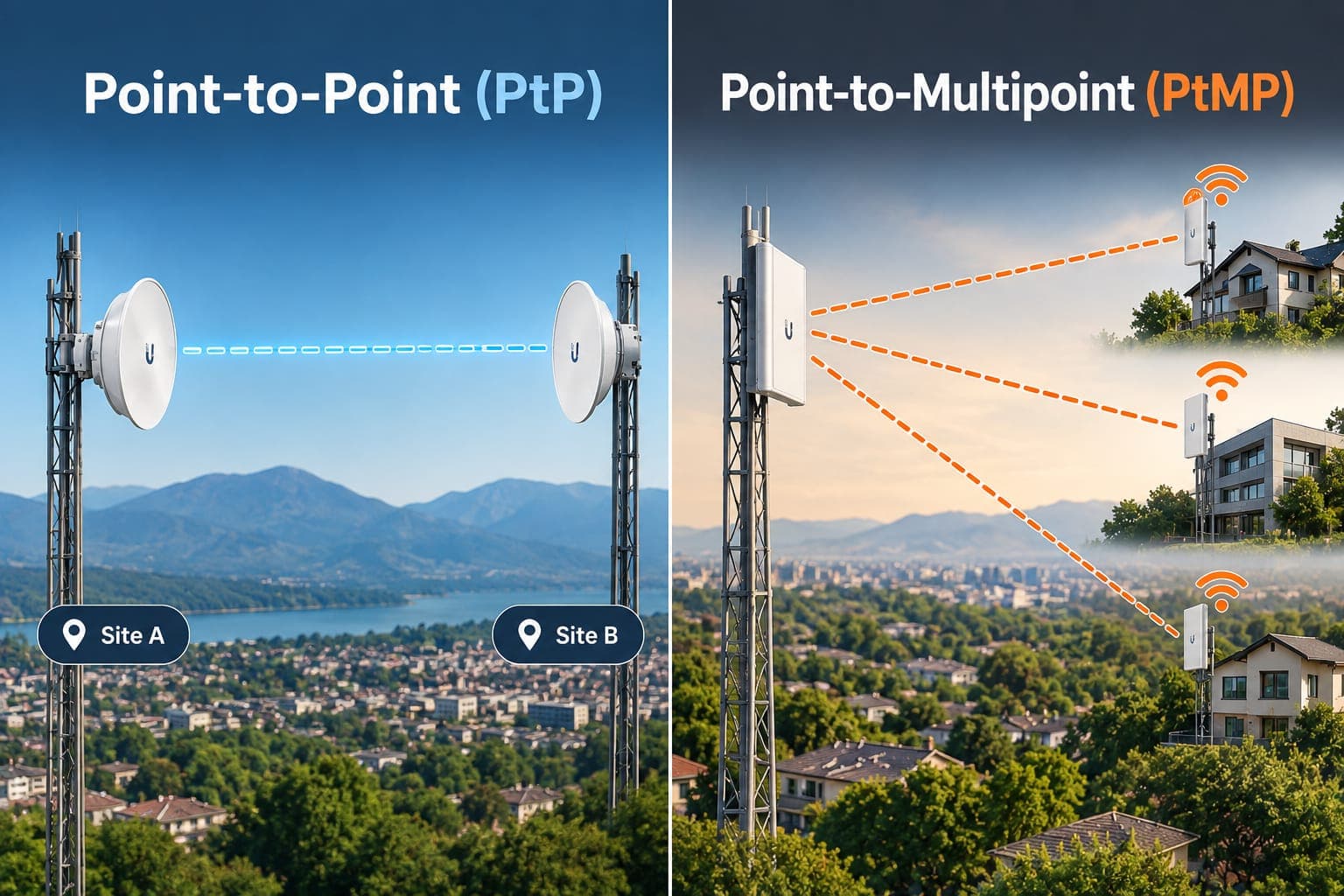
Offer both bands, but push customers toward 5GHz where they can reach it to keep speeds up. Handle the reach problem with well-placed access points rather than relying on the router alone. If you're linking buildings wirelessly, that's a different job again, and our explainer on PTP vs PTMP wireless links covers it.
For gaming and video calls
5GHz, every time, and ideally close to the router. For the lowest lag, a network cable beats both.
Should You Use the Same Name for Both Bands?
Many routers let you give both bands the same WiFi name so your devices choose automatically. This is often called band steering. It's convenient, and it works well on decent routers.
But cheaper routers don't always choose wisely, and you might find a phone clinging to a weak 2.4GHz signal when 5GHz would be faster.
If that happens, give each band its own name, like "Home" and "Home-5G." That way you decide which one you connect to, and you can move your devices onto the right band on purpose.
How to Improve Your WiFi on Either Band
Move your router. Put it high up and central, not hidden in a cupboard or behind a TV. This is the cheapest fix and often the best one.
Change the channel on 2.4GHz. If your WiFi is slow at busy times, try channels 1, 6 or 11, whichever is least crowded near you. Many routers set this automatically, but not always well.
Use 5GHz whenever you're close. Make it your default indoors near the router and save 2.4GHz for reach.
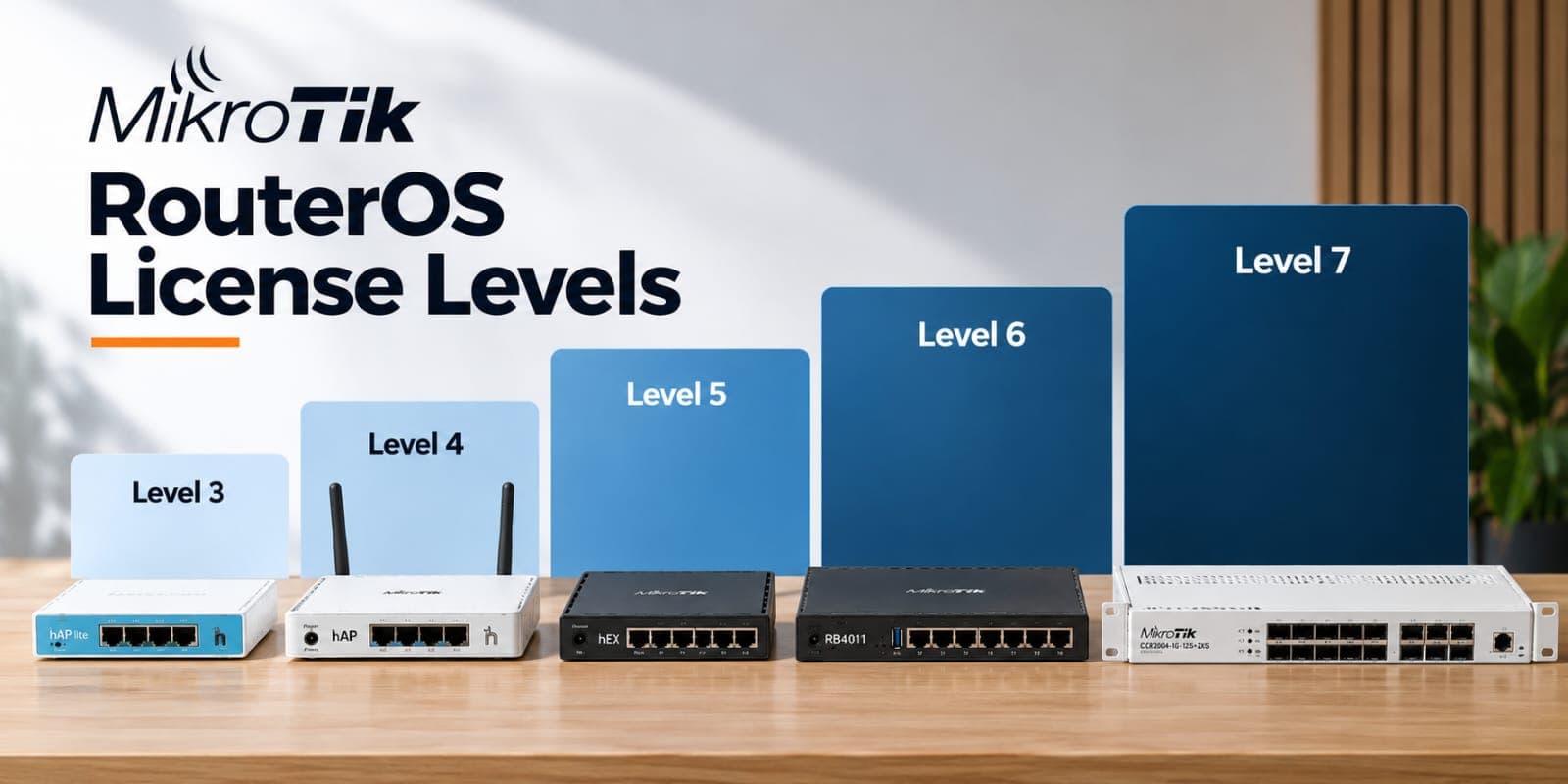
Add an access point instead of a bigger router. A second access point in the far end of the house or office gives strong 5GHz coverage where a single router struggles. If you're weighing router options, our MikroTik routers explained guide helps you pick one that suits your space.
Upgrade old equipment. If your router is several years old, it may only support older, slower WiFi standards. A newer dual band or WiFi 6 router can make a real difference.
Wire what you can. Desktop PCs, smart TVs and consoles that don't move are always better on a cable. That frees up WiFi for everything else.
What About 6GHz and WiFi 6E?
You may have seen "WiFi 6E" or "WiFi 7" on newer devices. These add a third band, 6GHz, which is even faster and less crowded than 5GHz, though its range is shorter still.
It's exciting technology, but you don't need it to have good WiFi. Most homes and small businesses are perfectly served by a good dual band setup, so don't feel pressured to upgrade just for the label.
Common Mistakes to Avoid
Assuming "5G" WiFi means mobile 5G. It doesn't. The "5G" in a WiFi name just means the 5GHz band and has nothing to do with your mobile network.
Blaming your internet provider first. Many "slow internet" complaints are really WiFi problems: wrong band, bad router placement or a crowded channel. Test with a cable before you call your ISP.
Using 5GHz through several walls. If the signal is weak, switch to 2.4GHz or add an access point.
Buying one powerful router for a big building. More coverage points beat one big transmitter almost every time.
Ignoring smart devices. If a camera or plug won't connect, check the band before you reset everything.
Frequently Asked Questions
Is 5GHz always faster than 2.4GHz?
Not always. 5GHz is faster when you have a good signal, meaning you're fairly close to the router. Far away or behind thick walls, 2.4GHz can end up faster in practice because its signal holds up better.
Why can't I see the 5GHz network on my phone or laptop?
Either your device only supports 2.4GHz, or you're too far from the router for the 5GHz signal to reach you. Move closer and check again.
Can I use 2.4GHz and 5GHz at the same time?
Yes. A dual band router broadcasts both, and different devices can use different bands at once.
Which band is better for gaming?
5GHz, because it's faster and less crowded, which helps keep lag down. A wired connection is better still.
Which band is better for CCTV cameras?
Most WiFi cameras use 2.4GHz because it reaches further and travels through walls better. Check the specifications of your camera before you buy.
Does 2.4GHz or 5GHz have better range?
2.4GHz. It travels further and passes through walls more easily than 5GHz.
Do I need a new router for 5GHz?
Only if your current one is single band. Most routers sold today are dual band. If yours isn't, it's worth upgrading.
The Bottom Line
Neither band is "better." They're built for different jobs. 5GHz is your fast lane for anything close to the router, and 2.4GHz is your long-distance option for reach and simple devices. The best setups use both, and add extra access points when one router can't cover everything.
Not sure what your home, office or business actually needs? Have a look at our networking devices, or call or WhatsApp us on +254724368347 and tell us about your space. We'll point you to the right router or access point, with no pressure and no upselling. You can also visit us at Kenya Cinema Plaza, Moi Avenue, Shop 3-1C in Nairobi, and we deliver countrywide.
Related reading: PTP vs PTMP: which one do you need? · MikroTik routers explained · Talisa Tech News